Devices enrolled in Microsoft Intune often have their location settings locked or grayed out by default. — While this can be intentional for security, in many configurations it happens even when it’s not strictly required — creating real headaches for end users, especially frequent travelers.
The native Intune policies are often inconsistent — sometimes the toggle is completely grayed out, other times the setting reverts after a reboot, or location services simply don’t behave as expected. After dealing with these frustrations across many high-profile clients, I developed a production-tested PowerShell solution that reliably enables location services on Intune-managed Windows devices.
The background of the issue
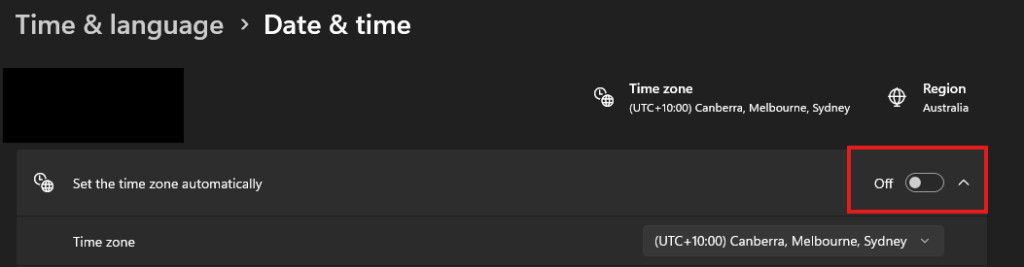
If you work in Intune-managed environments, especially within a Managed Service Provider (MSP), you have likely encountered the following restriction.

The frustrating dilemma with the image above is that this is not an enforced policy, but rather an irritating default setting for Intune-enrolled devices.
You may be thinking, well this isn’t that big of a deal. We know the local administrator credentials, we can just log in with the account, flip the toggle, sign back in as the standard user, and hooray! Everything works. This approach is fine if you manage a small fleet of devices, but for organisations that manage hundreds of devices, this simply is not feasible.
You might be wondering — why do Location Services even matter for business users?
For clients who travel frequently and live in back-to-back meetings, automatic time zone detection is critical. Without reliable location services, Windows often fails to update the system time zone when they move between cities or countries. As a result, meeting invites and calendar reminders stay locked to their home time zone, leading to missed or mistimed meetings.
This is where related issues occur—Automatic Timezone functionality is restricted behind Location Services being enabled, and ultimately requires User Account Control (UAC) permission to change the setting.
So why not just deploy an Intune policy?
While Intune can meet our objectives, in my experience and that of many colleagues, it oftens come with a significant limitation: typically enabling location access for all applications at once, while also preventing standard users from turning it off for individual apps.
This creates a privacy and security concern. Instead of allowing granular control (e.g. only Teams, Outlook, and Maps having access), the default Intune approach grants broad access to every app—resulting in a situation worse than having location services completely turned off.
So, if deploying an Intune policy won’t fix that frustrating default setting, where does that leave us? Registry changes? Powershell scripts to deploy registry changes?
Or do we just Grant Administrator rights to all users within your organisation…. absolutely not.
Registry changes have been recommended and implemented before—effective in the past but increasingly unreliable in late 2025 and early 2026. The reality is that the provided registry solution has not consistently delivered results, and this inconsistency removes all confidence when deploying it in an enterprise environment. While pure registry modifications have become unreliable on their own, they still serve a very useful purpose — particularly for detection.
What if told you, this can be resolved by one magical command.
What is the command?
C:\WINDOWS\system32\SystemSettingsAdminFlows.exe SetCamSystemGlobal location 1 Code language: CSS (css)This command uses SystemSettingsAdminFlows.exe — the same backend engine that the Windows Settings UI calls when you manually toggle Location Services on or off.
Running this command in an administrative PowerShell will instantly toggle the location services on, better yet this allows the user full ability to configure which applications can use location – a vast improvement on the Intune deployed policy/configuration that gives you no freedom.
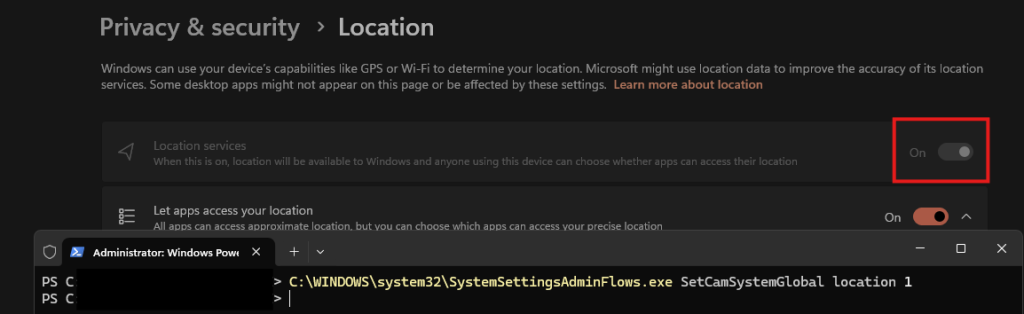
This command is not new; it has been available for some time if you’ve searched thoroughly. While the command works well, it doesn’t fully resolve all the issues. For instance, you still need to run it from an administrative PowerShell/CMD, which means it remains a manual process to execute it on each machine individually.
However, its presence enables us to expand, and when I discovered it for the first time, it helped me find a practical solution and proceed down an avenue I thought was blocked.
As for the TimeZone issues – do not worry, it has a brother which can achieve the same thing!
C:\WINDOWS\system32\SystemSettingsAdminFlows.exe SetTimeZoneAutoUpdate 1 Code language: CSS (css)Registry still serves a purpose
While I noted inconsistencies with the registry changes, the effective solution still relies on the registry. This is because there is no reliable method to determine whether a device’s location is enabled or disabled using the previously mentioned command.
HKLM:\SOFTWARE\Microsoft\Windows\CurrentVersion\CapabilityAccessManager\ConsentStore\location Value = AllowInstead of relying on this as our complete solution, we can use it primarily as a detection tool. By automatically identifying devices that lack this key, we can pinpoint which devices require this command. Applying the registry change ensures that all future scans and detections will succeed.
In my role, we primarily use NinjaOne as our RMM platform for patching, maintenance, and custom scripting tasks. We prefer it for its flexibility, speed, and integration with our ticketing system, which allows for efficient alerting and remediation.
That said, I don’t see why a standard Intune Detection/Remediation script can’t achieve the same outcome.
Our Evaluation (NinjaRMM) or Detection (Intune) script
While the specific code seen below is designed for NinjaRMM (hence the exit codes) I am sure with a little tweaking it can be adapted to an Intune Detection script that serves the same purpose.
<#
.SYNOPSIS
    Check if Location Services and Automatic Time Zone are enabled
.DESCRIPTION
    Evaluates:
    1. Location consent
    2. Location policy
    3. Automatic timezone detection
.NOTES
    Exit 0 = Compliant
    Exit 1 = Non-compliant
    Author = Dylan Peterson
#>

function Test-LocationAndTimezone {

    try {
        $isCompliant = $true

        # ----------------------------------------
        # 1. Location Consent
        # ----------------------------------------
        $consentPath = "HKLM:\SOFTWARE\Microsoft\Windows\CurrentVersion\CapabilityAccessManager\ConsentStore\location"

        if (Test-Path $consentPath) {
            $consent = (Get-ItemProperty -Path $consentPath -ErrorAction Stop).Value
            Write-Output "Location Consent: $consent"

            if ($consent -ne "Allow") {
                Write-Output "Exception: Location services not allowed"
                $isCompliant = $false
            }
        }
        else {
            Write-Output "Exception: Location consent registry path missing"
            $isCompliant = $false
        }

        # ----------------------------------------
        # 2. Location Policy
        # ----------------------------------------
        $policyPath = "HKLM:\SOFTWARE\Microsoft\Windows\CurrentVersion\Policies\System"

        if (Test-Path $policyPath) {
            $policy = (Get-ItemProperty -Path $policyPath -Name EnableLocation -ErrorAction SilentlyContinue).EnableLocation
            Write-Output "EnableLocation Policy: $policy"

            if ($policy -eq 0) {
                Write-Output "Exception: Location disabled via policy"
                $isCompliant = $false
            }
        }

        # ----------------------------------------
        # 3. Automatic Time Zone
        # ----------------------------------------
        $tzPath = "HKLM:\SOFTWARE\Microsoft\Windows\CurrentVersion\DateTime"

        if (Test-Path $tzPath) {
            $tz = (Get-ItemProperty -Path $tzPath -ErrorAction Stop).AutoTimeZoneUpdate
            Write-Output "AutoTimeZoneUpdate: $tz"

            if ($tz -ne 1) {
                Write-Output "Exception: Automatic timezone not enabled"
                $isCompliant = $false
            }
        }
        else {
            Write-Output "Exception: DateTime registry path missing"
            $isCompliant = $false
        }

        # ----------------------------------------
        # Final Result
        # ----------------------------------------
        if ($isCompliant) {
            Write-Output "COMPLIANT: Location and timezone settings are correct"
            exit 0
        }
        else {
            Write-Output "NON-COMPLIANT: One or more checks failed"
            exit 1
        }

    }
    catch {
        Write-Output "Fatal Exception: $($_.Exception.Message)"
        exit 1
    }
}

# Run check
Test-LocationAndTimezoneCode language: PHP (php)
What exactly is this script doing?
Well remember I said we still needed the registry, this utilises those values to determine if remediation is required.
- Location Consent – The old “solution” it will search for the location key and see if Value is set to ‘Allow’, if the key doesn’t exist or the value is ‘Deny’, it will return Non-Compliant.
- Location Policy – As a fail safe, we check if a (GP) policy is present and if so report non-compliant.
- Automatic Time Zone – The last check is for our Automatic TimeZone configuration, again if the key is different/missing it will return non-compliant.
If any steps return Non-Compliant, our remediation script will fire.
Our Remediation (NinjaRMM/Intune)
$registryPath = "HKLM:\SOFTWARE\Microsoft\Windows\CurrentVersion\CapabilityAccessManager\ConsentStore\location"
$valueName    = "Value"
$desiredValue = "Allow"

$adminFlowExe = "$env:SystemRoot\System32\SystemSettingsAdminFlows.exe"

try {
    # ------------------------------------------------
    # Enable app-level location consent
    # ------------------------------------------------
    if (-not (Test-Path $registryPath)) {
        throw "Registry path not found: $registryPath"
    }

    $currentValue = (Get-ItemProperty -Path $registryPath -Name $valueName -ErrorAction Stop).$valueName
    Write-Output "Current registry value: $currentValue"

    if ($currentValue -ne $desiredValue) {
        Set-ItemProperty -Path $registryPath -Name $valueName -Value $desiredValue -ErrorAction Stop
        Write-Output "Updated registry value to '$desiredValue'"
    }
    else {
        Write-Output "Registry already set correctly."
    }

    # ------------------------------------------------
    # Enable system-wide Location Services
    # ------------------------------------------------
    if (-not (Test-Path $adminFlowExe)) {
        throw "SystemSettingsAdminFlows.exe not found"
    }

    Write-Output "Enabling global Location Services..."
    Start-Process `
        -FilePath $adminFlowExe `
        -ArgumentList "SetCamSystemGlobal location 1" `
        -NoNewWindow `
        -Wait

    Write-Output "Location Services enabled."

    # ------------------------------------------------
    # Enable Automatic Time Zone Detection
    # ------------------------------------------------
    Write-Output "Enabling automatic time zone detection..."

    if (-not (Test-Path $adminFlowExe)) {
        throw "SystemSettingsAdminFlows.exe not found"
    }

    # Enable via SystemSettingsAdminFlows (preferred modern method)
    Start-Process `
        -FilePath $adminFlowExe `
        -ArgumentList "SetTimeZoneAutoUpdate 1" `
        -NoNewWindow `
        -Wait

    Write-Output "SystemSettingsAdminFlows Auto Time Zone command executed."

    # Ensure tzautoupdate service is enabled (Manual / Trigger Start)
    Set-ItemProperty `
        -Path "HKLM:\SYSTEM\CurrentControlSet\Services\tzautoupdate" `
        -Name "Start" `
        -Type DWord `
        -Value 3 `
        -Force

    # Ensure registry flag is set (fallback/consistency)
    New-Item `
        -Path "HKLM:\SOFTWARE\Microsoft\Windows\CurrentVersion\DateTime" `
        -Force | Out-Null

    Set-ItemProperty `
        -Path "HKLM:\SOFTWARE\Microsoft\Windows\CurrentVersion\DateTime" `
        -Name "AutoTimeZoneUpdate" `
        -Type DWord `
        -Value 1 `
        -Force

    # Restart service
    Restart-Service tzautoupdate -ErrorAction SilentlyContinue

    Write-Output "Automatic time zone detection configured."
}
catch {
    Write-Error "Failed to configure Location / Time Zone settings. $_"
    exit 1
}Code language: PHP (php)
Without delving into and explaining every line, we will just highlight the key functionality
App-level Location Consent It directly updates the Windows Capability Access Manager registry key to set location access to “Allow”. This ensures subsequent runs of our detection script will return compliant. Since our ‘SystemSettingsAdminFlows.exe’ command is executed during remediation, we can confidently confirm that location services will be enabled.
System-wide Location Services This utilises the previously mentioned SystemSettingsAdminFlows.exe to programmatically enable Location Services at the OS level—the same process used by Windows Settings. This approach is far more reliable than simply modifying registry keys.
Automatic Time Zone Detection The script activates this feature using the latest method and ensures the tzautoupdate service is correctly configured and running. We also ensure to configure the registry keys to stop ensure future runs of our detection script return compliant.
Final Thoughts
That’s it! If you’ve read the whole post, thank you — I really appreciate it. If you’ve already taken the script and put it into your own environment, that’s even better. Location services being locked or inconsistent has been a long-standing frustration in my day-to-day work, so finally having a reliable fix feels pretty good.
I’m sharing this because I know how painful these Intune quirks can be. If this helps even a few other technicians or MSPs save some time and headaches, then it’s done its job.
If you end up using the script and have any improvements, suggestions, or find edge cases I haven’t covered, please feel free to drop a comment below. I’m always happy to refine it further.
Thanks for reading, and happy deploying!